Add a tropical pool background to your portrait photo
Add a tropical pool setting with blue water, palm trees and a sunny deck behind your portrait. Work on a still image locally in your browser.
Start editing ↗Choose your frame.
Open a portrait or capture one with your camera. Processing runs in this browser after you choose a photo.
Choose a local image or take a camera photo.
No photo selected.
PNG keeps transparency on the Transparent preset. JPEG always has an opaque background. Downloads begin only when you press a button.
Pick a background
Change the scene without opening your portrait again.
Interiors
Outdoors
Creative
Colors and effects
What this edit does
Add a tropical pool setting with blue water, palm trees and a sunny deck behind your portrait. This scene has a resort-like atmosphere, distinct from the sand and open sea of the beach background. Preview both with the same photo before choosing a result.
When to use this look
Make a summer-themed personal portrait, a holiday invitation image or a playful profile picture with a poolside setting.
Example: before and after
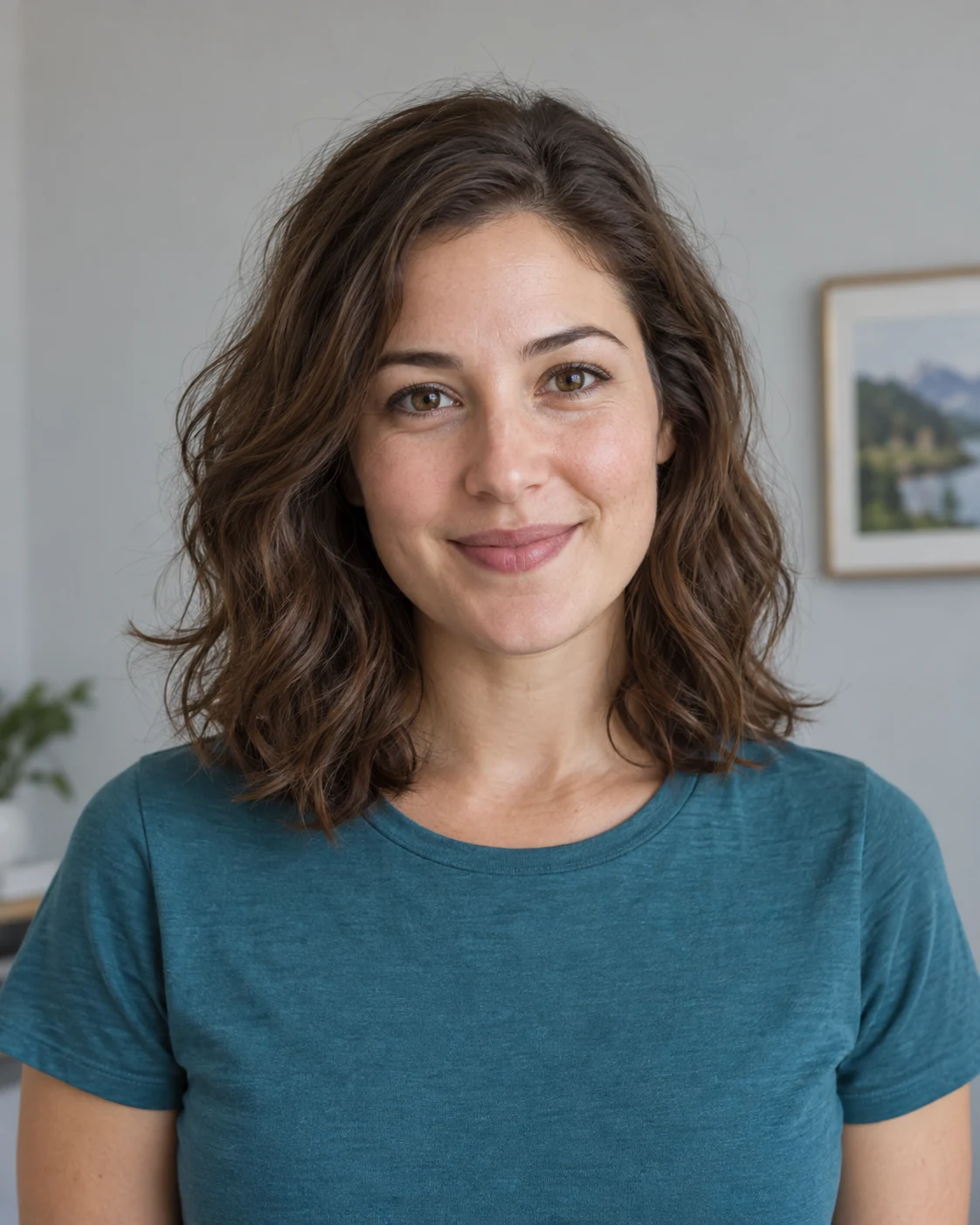 Before · sample portrait
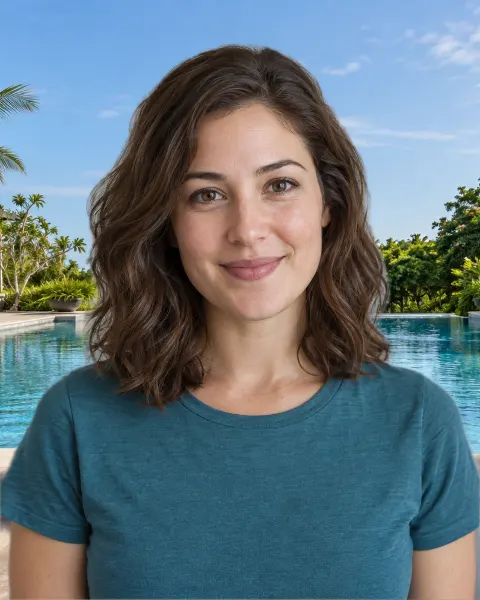 After · Tropical pool background
Illustrative sample portrait generated for this guide; the after image uses this editor's browser segmentation and scene assets.
A portrait taken against an ordinary room becomes a composite with tropical pool behind the person. The face and clothing remain from the original photo.
Tips for a believable result
- Use a bright, evenly lit portrait to match the sunny outdoor scene.
- Keep the pool edge below the face and palm fronds away from the outline of the head.
The model targets the prominent person in a still image. Fine hair, motion blur, crowds, or similar foreground and background colors can reduce cutout quality.
Four steps
- Open or capture a portrait
Use a local image file, or start the camera and capture a still photo after the optional timer.
- Let the browser find the person
The on-device model separates the prominent person from the original background once per photo.
- Preview tropical pool
Inspect the result, move or fit a scene if needed, and adjust edge softness. Switch presets without repeating the cutout.
- Save the result
Choose PNG for transparency or JPEG for an opaque image. Nothing downloads automatically.
Common questions
Will it look as though I am standing in the water?
The preset shows a pool from the deck. You can adjust the background crop, but the editor does not simulate immersion, reflections or water in front of the person.
Can I switch from the pool to a beach?
Yes. Beach is another option in the same picker, and switching keeps your portrait open.
Does this work with a webcam photo?
Yes. Start the camera, choose a timer if you like, and capture a still image. Camera permission is requested only when you press Use camera.
Does changing backgrounds upload my photo?
No. Portrait segmentation and composition run in your browser. The model and preset images are static files downloaded from this site.