Make your portrait background transparent
Remove the room or scenery behind a portrait and keep the person on a transparent background. Work on a still image locally in your browser.
Start editing ↗Choose your frame.
Open a portrait or capture one with your camera. Processing runs in this browser after you choose a photo.
Choose a local image or take a camera photo.
No photo selected.
PNG keeps transparency on the Transparent preset. JPEG always has an opaque background. Downloads begin only when you press a button.
Pick a background
Change the scene without opening your portrait again.
Interiors
Outdoors
Creative
Colors and effects
What this edit does
Remove the room or scenery behind a portrait and keep the person on a transparent background. The checkerboard in the preview shows empty areas; it is not part of the downloaded PNG. A transparent portrait can be placed over another image in a design editor without carrying a rectangular background with it.
When to use this look
Create a portrait cutout for a personal presentation, invitation or profile graphic. You can also switch straight from transparency to any scene in this editor.
Example: before and after
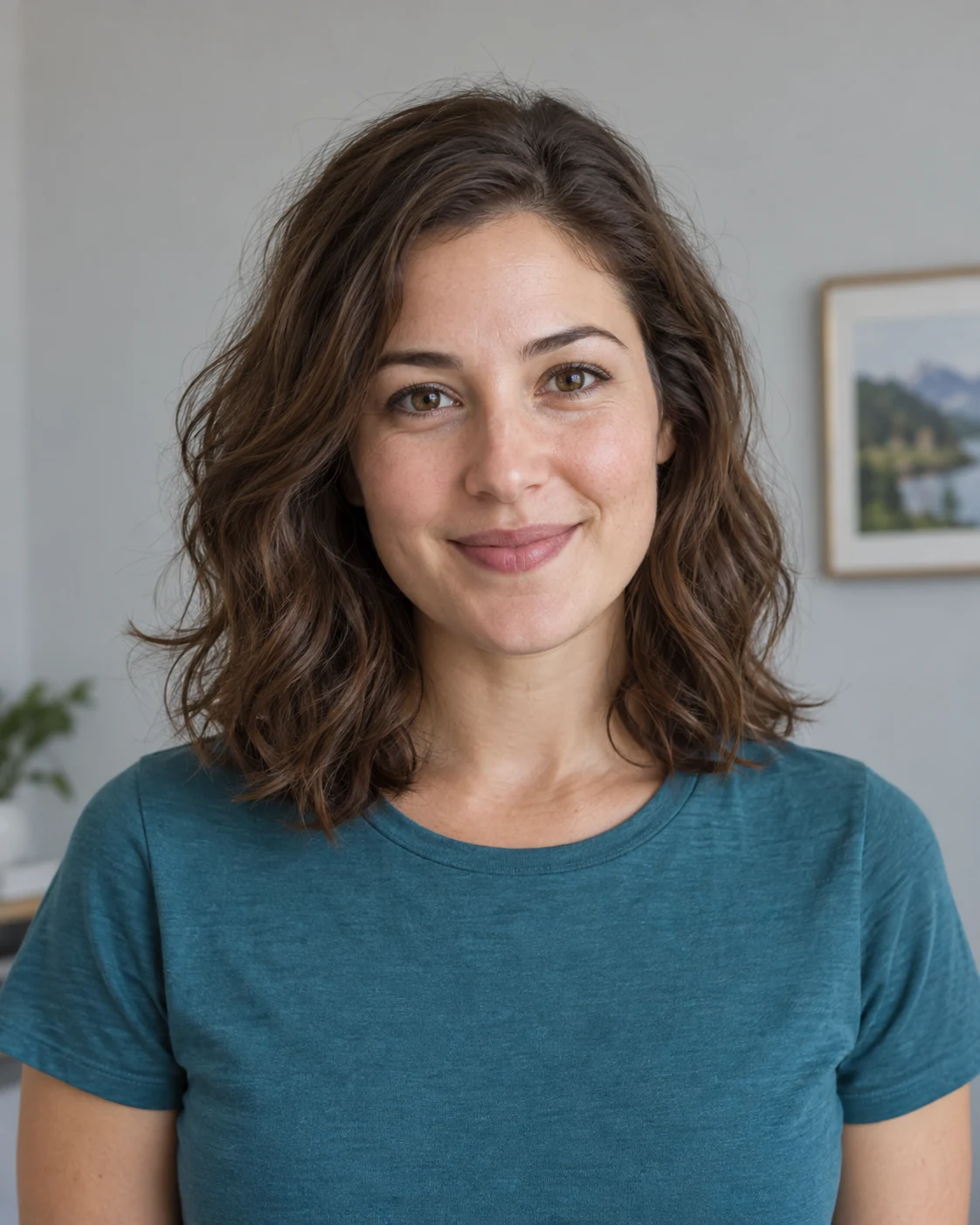 Before · sample portrait
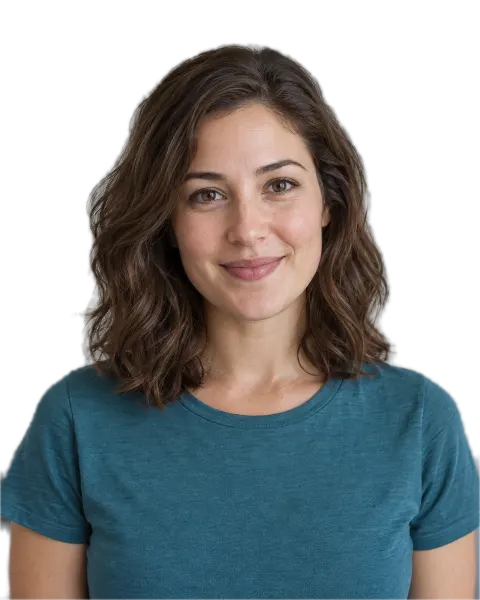 After · Transparent background
Illustrative sample portrait generated for this guide; the after image uses this editor's browser segmentation and scene assets.
The same portrait first has its room behind it; after processing, the person appears over a checkerboard. Save a PNG to keep those transparent pixels.
Tips for a believable result
- Download PNG when you need transparency. JPEG cannot store transparent pixels.
- Inspect loose hair and the edges of light clothing before saving. A small amount of edge softness can help, but too much may blur the outline.
The model targets the prominent person in a still image. Fine hair, motion blur, crowds, or similar foreground and background colors can reduce cutout quality.
Four steps
- Open or capture a portrait
Use a local image file, or start the camera and capture a still photo after the optional timer.
- Let the browser find the person
The on-device model separates the prominent person from the original background once per photo.
- Preview transparent
Inspect the result, move or fit a scene if needed, and adjust edge softness. Switch presets without repeating the cutout.
- Save the result
Choose PNG for transparency or JPEG for an opaque image. Nothing downloads automatically.
Common questions
Will the checkerboard appear in my PNG?
No. The checkerboard is only a preview of transparent areas. Those areas remain transparent in the PNG.
Can this remove the background from a product photo?
This editor is designed to separate people in portraits. It is not a general cutout tool for products, pets or other objects.
Does this work with a webcam photo?
Yes. Start the camera, choose a timer if you like, and capture a still image. Camera permission is requested only when you press Use camera.
Does changing backgrounds upload my photo?
No. Portrait segmentation and composition run in your browser. The model and preset images are static files downloaded from this site.