Add a hotel lobby background to your portrait photo
Place your portrait in a spacious hotel-style lobby with warm stone, tall windows and lounge seating. Work on a still image locally in your browser.
Start editing ↗Choose your frame.
Open a portrait or capture one with your camera. Processing runs in this browser after you choose a photo.
Choose a local image or take a camera photo.
No photo selected.
PNG keeps transparency on the Transparent preset. JPEG always has an opaque background. Downloads begin only when you press a button.
Pick a background
Change the scene without opening your portrait again.
Interiors
Outdoors
Creative
Colors and effects
What this edit does
Place your portrait in a spacious hotel-style lobby with warm stone, tall windows and lounge seating. The interior gives the photo a polished setting with visible depth behind the person. Preview it with your own portrait and adjust the room crop before saving.
When to use this look
Try a formal personal introduction, a travel-themed portrait or a profile image with an elegant indoor setting. Office and living room backgrounds provide more everyday alternatives.
Example: before and after
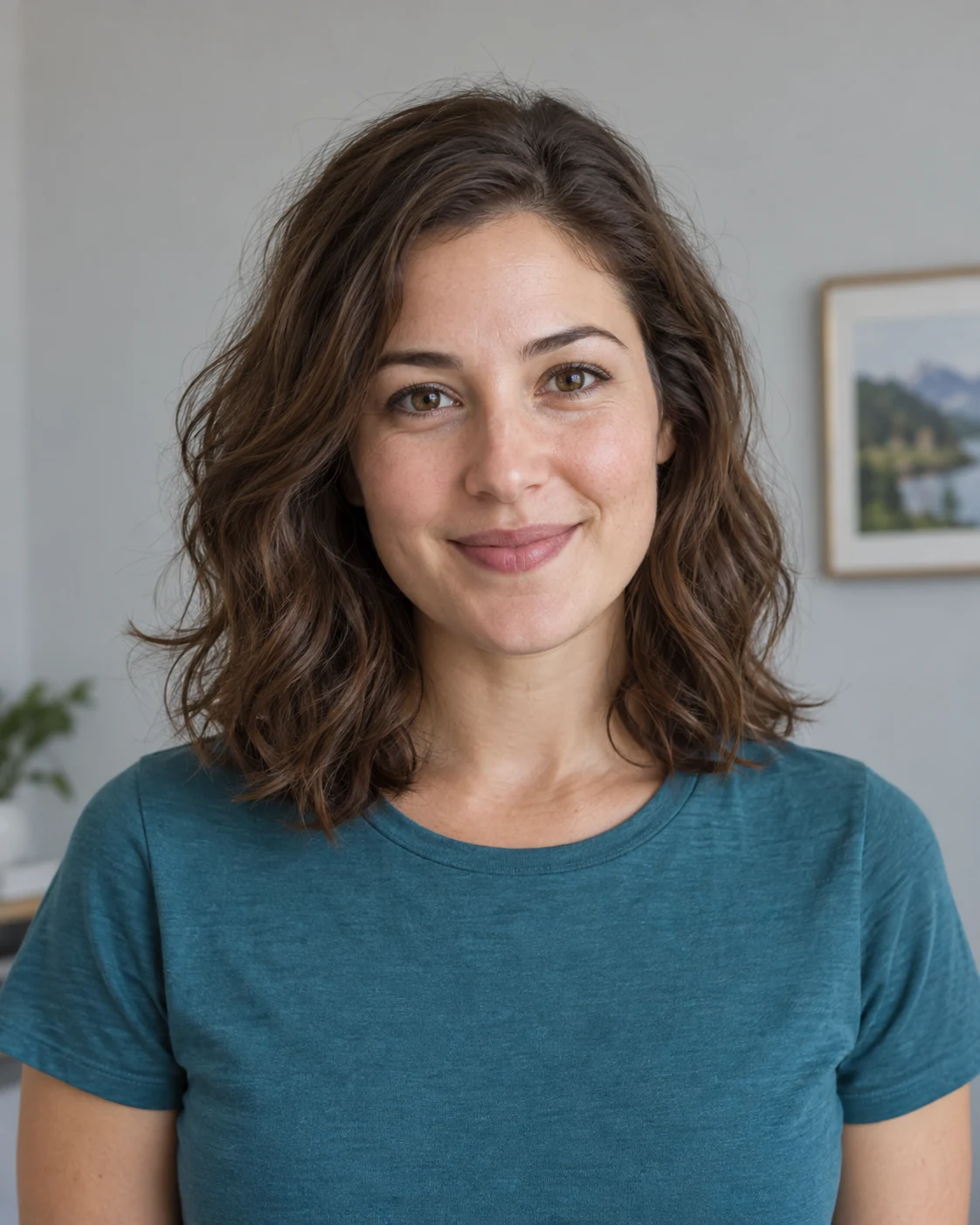 Before · sample portrait
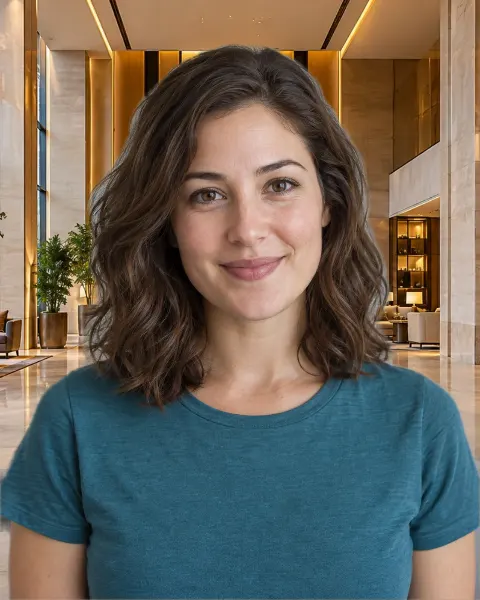 After · Hotel lobby background
Illustrative sample portrait generated for this guide; the after image uses this editor's browser segmentation and scene assets.
A portrait taken against an ordinary room becomes a composite with hotel lobby behind the person. The face and clothing remain from the original photo.
Tips for a believable result
- A portrait with gentle warm light will usually blend better with the lobby than one with a strong blue cast.
- Keep architectural lines and furniture behind the shoulders, with clear space around the face.
The model targets the prominent person in a still image. Fine hair, motion blur, crowds, or similar foreground and background colors can reduce cutout quality.
Four steps
- Open or capture a portrait
Use a local image file, or start the camera and capture a still photo after the optional timer.
- Let the browser find the person
The on-device model separates the prominent person from the original background once per photo.
- Preview hotel lobby
Inspect the result, move or fit a scene if needed, and adjust edge softness. Switch presets without repeating the cutout.
- Save the result
Choose PNG for transparency or JPEG for an opaque image. Nothing downloads automatically.
Common questions
Is this the lobby of a named hotel?
It is a prepared illustrative background for photo editing. The result does not indicate a stay at, endorsement by or connection to a particular hotel.
Can I place myself behind the furniture?
No. This editor puts the whole background behind the detected person; it does not create separate foreground furniture layers.
Does this work with a webcam photo?
Yes. Start the camera, choose a timer if you like, and capture a still image. Camera permission is requested only when you press Use camera.
Does changing backgrounds upload my photo?
No. Portrait segmentation and composition run in your browser. The model and preset images are static files downloaded from this site.