Add a gray background to your portrait photo
Set your portrait against a neutral gray background for a simple, balanced look. Work on a still image locally in your browser.
Start editing ↗Choose your frame.
Open a portrait or capture one with your camera. Processing runs in this browser after you choose a photo.
Choose a local image or take a camera photo.
No photo selected.
PNG keeps transparency on the Transparent preset. JPEG always has an opaque background. Downloads begin only when you press a button.
Pick a background
Change the scene without opening your portrait again.
Interiors
Outdoors
Creative
Colors and effects
What this edit does
Set your portrait against a neutral gray background for a simple, balanced look. Gray provides a middle ground between bright white and a dark backdrop, leaving room for both light and dark details in the person. Try the preset and adjust the shade while viewing your own photo.
When to use this look
Use a gray portrait in a personal profile, team slide or introduction card when you want a restrained background that does not compete with the subject.
Example: before and after
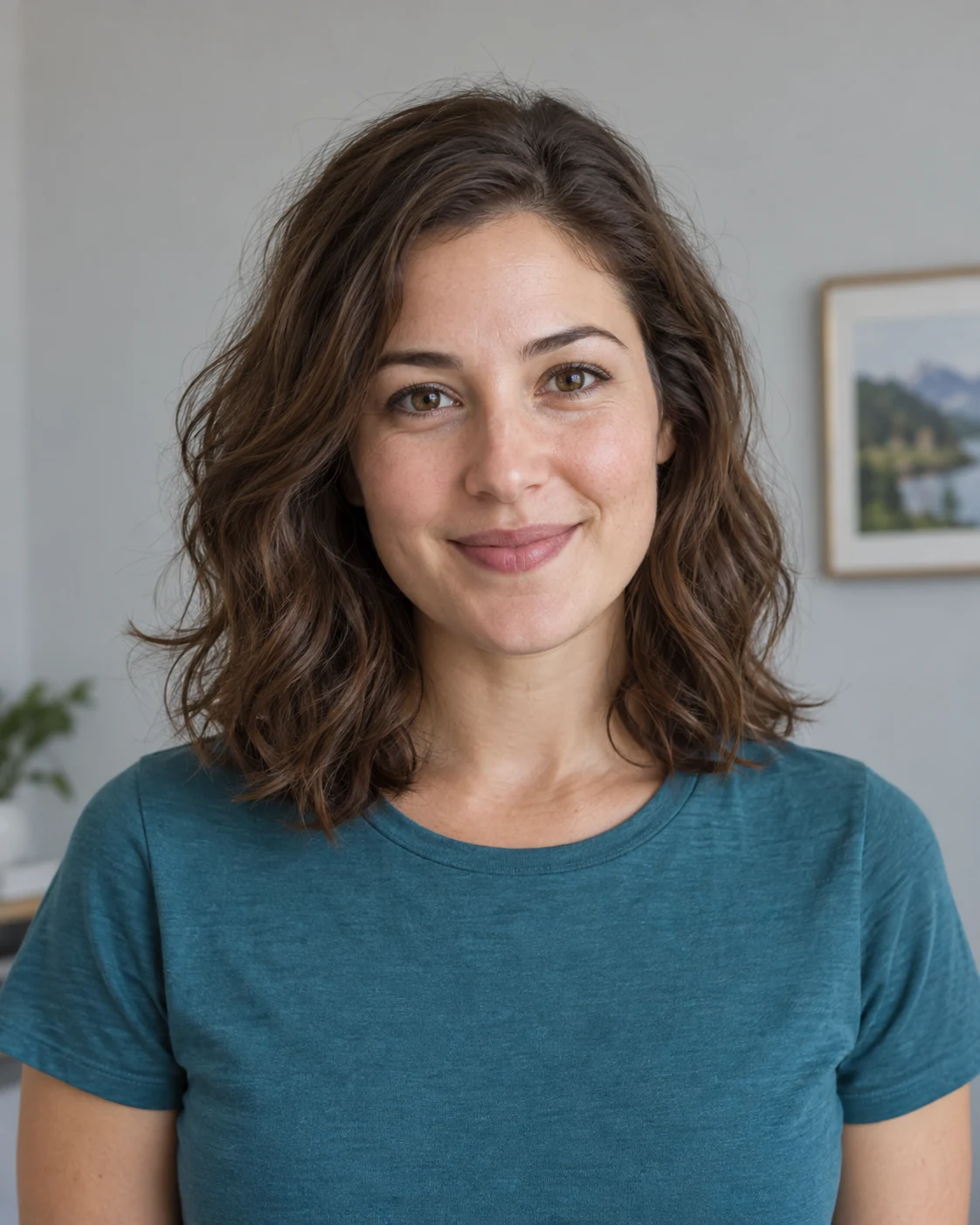 Before · sample portrait
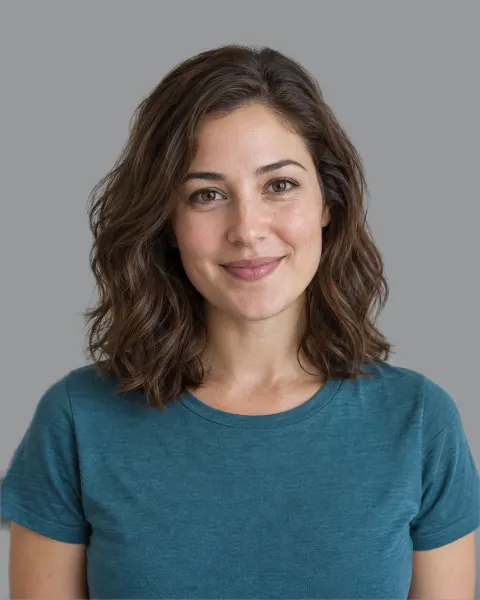 After · Gray background
Illustrative sample portrait generated for this guide; the after image uses this editor's browser segmentation and scene assets.
A portrait taken against an ordinary room becomes a composite with gray behind the person. The face and clothing remain from the original photo.
Tips for a believable result
- Move to a lighter or darker gray if the outline of your shirt blends into the backdrop.
- Inspect shadows around the hair. A neutral background can make leftover edges easier to notice.
The model targets the prominent person in a still image. Fine hair, motion blur, crowds, or similar foreground and background colors can reduce cutout quality.
Four steps
- Open or capture a portrait
Use a local image file, or start the camera and capture a still photo after the optional timer.
- Let the browser find the person
The on-device model separates the prominent person from the original background once per photo.
- Preview gray
Inspect the result, move or fit a scene if needed, and adjust edge softness. Switch presets without repeating the cutout.
- Save the result
Choose PNG for transparency or JPEG for an opaque image. Nothing downloads automatically.
Common questions
Are gray and grey different effects?
No. They are different spellings for the same background color. This page covers both.
Can I make the gray background warmer or cooler?
Yes. The color control lets you choose a neutral gray or a shade with a slight warm or cool tint.
Does this work with a webcam photo?
Yes. Start the camera, choose a timer if you like, and capture a still image. Camera permission is requested only when you press Use camera.
Does changing backgrounds upload my photo?
No. Portrait segmentation and composition run in your browser. The model and preset images are static files downloaded from this site.